In this article
Your opt-in message stands between visitors and your list. Most creators write it in ten seconds (“Subscribe for updates”) and then wonder why nobody signs up. You can write a better one in under an hour. This guide covers every message a new subscriber reads, from the form to the confirmation email, with copy you can adapt today.
What You’ll Need
- A lead magnet, or at least a working title for one. The message sells the thing behind the form. If you have not picked a format yet, start with how to create a lead magnet.
- Access to your email tool’s form editor. ConvertKit, Beehiiv, MailerLite, and Brevo all let you edit the form text, the thank-you message, and the confirmation email.
- A second email address for testing. A fresh Gmail or Outlook address works. Your own inbox already knows you.
- Your postal address. Marketing emails to US recipients need one in the footer, per the FTC’s CAN-SPAM guide. A registered P.O. box or private mailbox counts.
- Under an hour. That is enough for all nine steps. Most of it is writing short lines and deleting extra words.
This guide is about email. Text-message (SMS) opt-ins follow different consent rules, so do not paste this copy into a text flow.
How to Write an Email Opt-In Message
1. Map every message the subscriber will read
An “opt-in message” is not one block of text. It is a short chain, and each link has its own job.
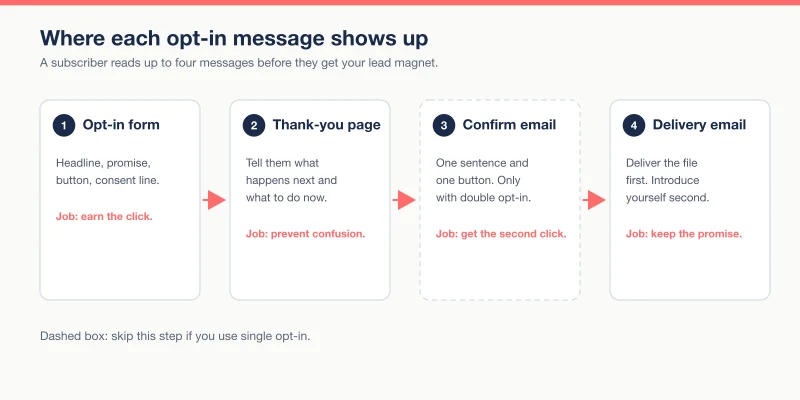
- The form. Earns the click.
- The thank-you page. Tells them what happens next.
- The confirmation email. Only exists if you use double opt-in, where the subscriber must click a link to confirm. When the file arrives depends on your tool: some send it only after the click, and beehiiv’s free-product flow sends it straight away. Step 6 shows which.
- The delivery email. Keeps the promise and starts the relationship.
Decide now whether you want single or double opt-in. Single opt-in adds the person the moment they submit the form. Double opt-in adds them after they click the confirmation link. Double opt-in usually means a smaller list with fewer typos and fewer fake addresses. Single opt-in means more subscribers and a bit more cleanup. Neither is wrong. If your list is small and you are building trust, single opt-in with a clear unsubscribe link is a reasonable start. If you are seeing junk signups, switch to double.
Write down which of the four you will use. Steps 2 to 8 cover each one in order. Where the form sits on the page matters too, and where to put your lead magnet on your website covers placement.
2. Write the headline around the payoff
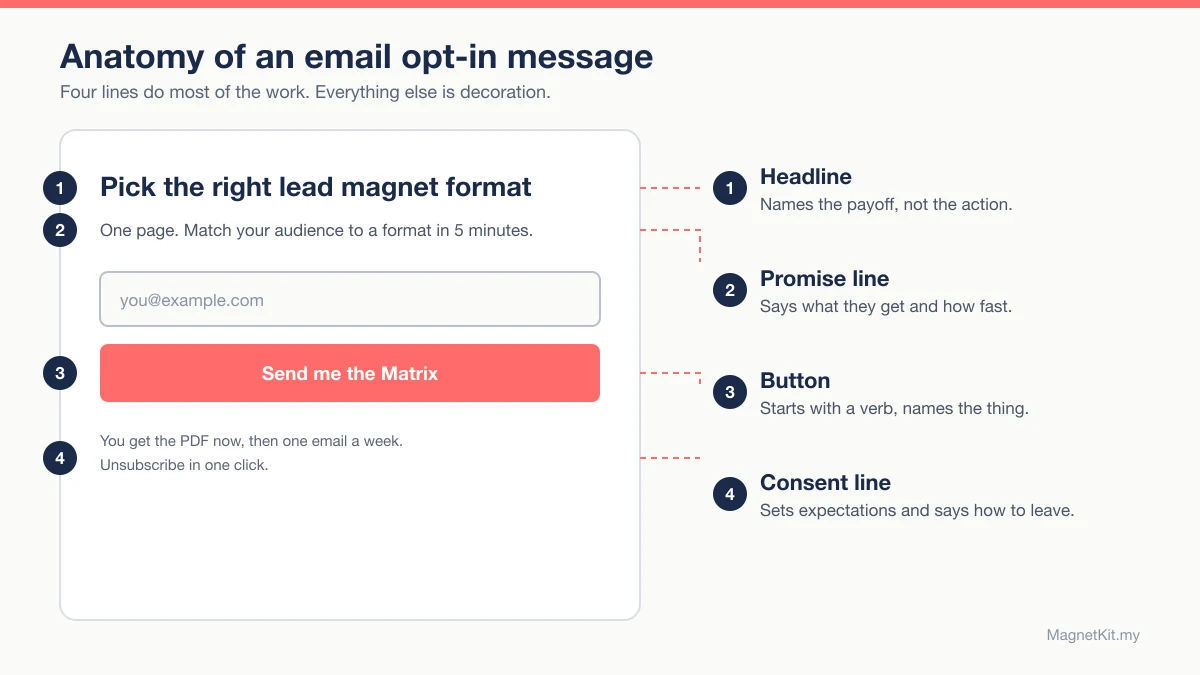
The headline is the first line of your opt-in message, and it has one job: make the right reader think “that is for me.”
Name the outcome, not the action. “Subscribe” describes what you want the reader to do. It says nothing about what they get. Instead, put the thing they receive, or the result they want, in the first six or seven words.
A quick formula: [Format] for [reader] who want [outcome]. Then cut it until it sounds like something a person would say out loud.
| Reader | Weak headline | Stronger headline |
|---|---|---|
| Career coach | Subscribe for tips | The one-page checklist for planning your career pivot |
| Finance blogger | Join the newsletter | The monthly budget template, ready to copy into Google Sheets |
| Freelance web designer | Stay in touch | The website launch checklist for first-time site owners |
Each stronger version names a specific thing. A stranger can picture it. If you want more on writing the title of the lead magnet itself, lead magnet copy that converts covers it in detail.
Test it: cover the rest of the page. Could a stranger tell what they get from the headline alone? If not, rewrite it.
3. Add a one-line promise
Under the headline, add one sentence that says what they get and how fast. Keep it to a single line on a phone screen.
Good promise lines answer two questions: what is in the file, and how long until I can use it?
- “A one-page PDF. Match your audience to a format in 5 minutes.”
- “Copy it into your own sheet and start tracking today.”
- “Print it, tick it off, and launch this weekend.”
Do not stack three benefits. One clear promise beats three vague ones, and it keeps the form short enough to finish reading before the reader gets bored.
Skip the hype words too: “ultimate,” “amazing,” “secret.” They add length and take away trust. A plain, specific sentence sounds more believable than a loud one.
4. Write the button and the field label
The button is the last thing the reader reads before they decide. “Submit” and “Sign up” describe the mechanism. A good button describes the reward.
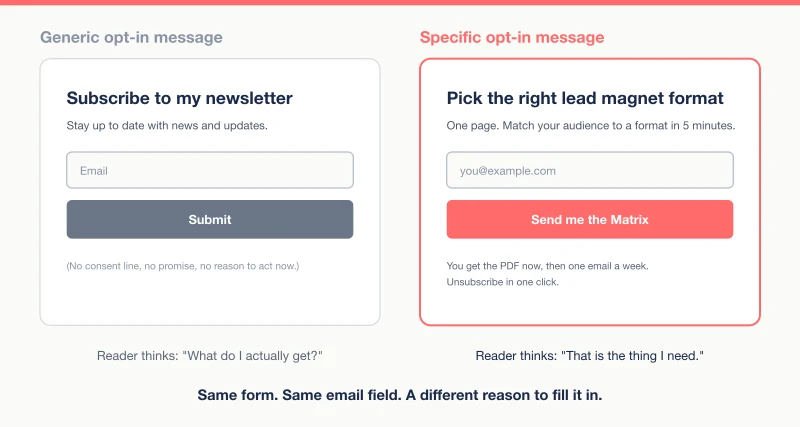
Start with a verb, then name the thing:
| Instead of | Try |
|---|---|
| Submit | Send me the checklist |
| Sign up | Get the template |
| Join | Yes, send it to me |
| Subscribe | Email me the Matrix |
Keep it to a few words. Use first person (“Send me”) when it fits your voice. It reads like a request the reader is making, not a form they are filling in.
Ask for an email address only, at least to start. Every extra field, name included, is one more reason to leave. You can ask for a first name later, in the welcome email, once they have seen what you send.
5. Write the consent line
Under the button, add one or two short lines that say what they will get, how often, and how to leave. This is the part most creators skip, and it is the part that keeps the wrong people off your list.
Three examples you can adapt:
- “You get the checklist now, then one email a week. Unsubscribe in one click.”
- “We will email you the PDF and occasional tips. You can unsubscribe at any time.”
- “Free. No spam. Unsubscribe whenever you like.”
If any of your subscribers might live in the EU or UK, consent has to meet a higher bar. Under GDPR, consent must be freely given, specific, informed and unambiguous, and it should be as easy to withdraw as to give. The same source quotes GDPR Recital 32: silence, pre-ticked boxes, and inactivity do not count as consent. In practice, that means an unchecked box with a clear label, like this:
☐ Yes, email me the checklist and weekly tips from [Your Name]. I can unsubscribe at any time.
For US subscribers, CAN-SPAM works differently. It covers the emails you send. The FTC’s guide says each marketing email needs your valid postal address and a clear way to opt out, and that you must honor opt-out requests within 10 business days. Your consent line should match what you will actually do.
This is general information, not legal advice. If your list is large or you serve regulated industries, ask a lawyer to review your forms.
6. Write the thank-you page message
The moment after they click is when most creators go quiet. The subscriber lands on a blank “Thanks!” page and wonders if it worked.
Use the page to do three things: confirm it worked, say what happens next, and tell them what to do right now.
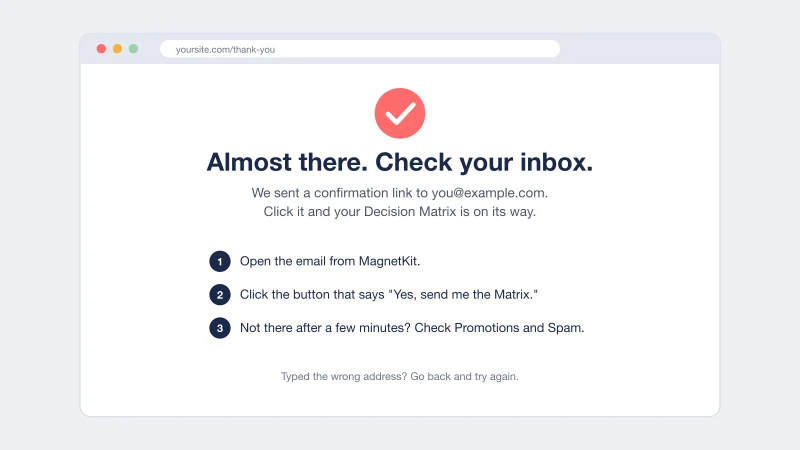
A short template. If your tool delivers only after confirmation:
Almost there. Check your inbox.
We sent a confirmation link to [their email]. Click it and your [lead magnet] is on its way.
Not there after a few minutes? Check Promotions and Spam.
If you use single opt-in, change the first line to “You are in. Your [lead magnet] is on its way,” and tell them which email to look for. Either way, add a way out for typos: “Typed the wrong address? Go back and try again.”
Check the opt-in language your tool really sends. Tools differ on when the file arrives. beehiiv’s free digital products, for example, send the file before the subscriber confirms, so a thank-you page that says “click the link to get it” would be wrong there.
| Platform and flow | What the subscriber gets first | Subscription status | Source |
|---|---|---|---|
| beehiiv, free digital product, double opt-in on | The product email, before confirming | Pending until they click the confirmation link; access is not gated by it | beehiiv help, updated 1 Oct 2026 |
| beehiiv, free digital product, logged-in subscriber | An instant access modal with the download link, plus an email | Already a subscriber | beehiiv help, updated 1 Oct 2026 |
| Kit (formerly ConvertKit), double opt-in (the default) | A confirmation email; the file can be set as the page they land on after confirming | Confirmed after the click, unless auto-confirm is on | Kit help, 2026 |
| Mailchimp, double opt-in | A confirmation email | Added to the audience after the click | Mailchimp help |
| MailerLite, Brevo, other tools | Check your platform | Check your platform | Test with a second address (Step 9) |
These flows are not new legal rules, and not every provider works the same way. Test yours.
If your tool sends the file first, use this version of the thank-you message instead:
Check your inbox. Your [lead magnet] is on its way.
We sent [lead magnet] to [their email]. Open that email to get it. [If your tool also sends a separate link to confirm your subscription: “Then click the separate confirm link so you stay on the list.”]
Not there after a few minutes? Check Promotions and Spam.
7. Write the confirmation email (double opt-in only)
If you use double opt-in, this email decides whether a subscriber actually joins. Keep it boring on purpose: one sentence of context, one button, one line for people who did not sign up.
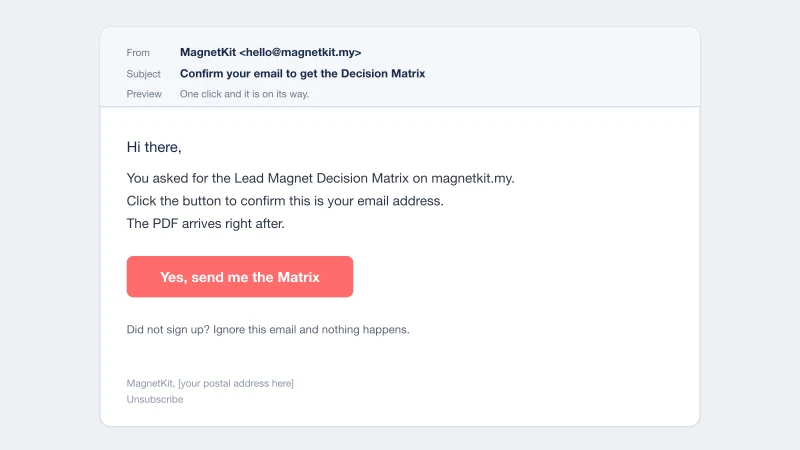
Copy you can adapt:
Subject: Confirm your email to get [Lead Magnet Name]
Preview text: One click and it is on its way.
Hi [First name or “there”],
You asked for [Lead Magnet Name] on [your site]. Click the button to confirm this is your email address, and I will send it right away.
[ Yes, send me [Lead Magnet Name] ]
Did not sign up? Ignore this email and nothing happens.
[Your name], [postal address]
If your tool already sent the file (beehiiv free products), change the middle line to: “Your [Lead Magnet Name] is already in your inbox. Click the button to confirm your subscription so you also get my emails.” Change the preview text to: “Confirm to stay on the list.”
Send it from a name the person will recognize, ideally yours or your brand’s. A sender they do not know is the fastest way to end up in the Spam folder. If you use Brevo, the Brevo lead magnet setup guide shows where these messages live in the tool.
8. Write the delivery email that keeps the promise
The final message is the one that pays off everything above it. Put the download link in the first screen. Do not make the reader scroll past a long intro to find it.
A simple pattern:
- Subject line: “Your [Lead Magnet Name] is here.”
- First line: the link, or the button, so they can grab the file at once.
- Second paragraph: one sentence on the fastest way to use it.
- Third paragraph: one sentence about who you are and what you will send next.
- Sign-off: an easy question they can reply to, like “What are you working on this week?”
Deliver first, introduce yourself second. A subscriber who got exactly what you promised, in the first minute, is far more likely to open the next email. With beehiiv, the delivery email links to the subscriber’s management center, where they can download the product again. For the full setup, including automation, see how to send a lead magnet delivery email automatically.
9. Test it like a stranger
Before you publish, run the whole chain once with your test address.
- Open the form on your phone. Can you read the headline, promise, and button without zooming?
- Submit the form. Does the thank-you page load, and does it match what you promised?
- Check the inbox and the Spam and Promotions folders. Did the confirmation email arrive quickly?
- Click every link and button. Do they all go where they should?
- Read the four messages in a row. Does the voice stay the same from form to delivery?
Then leave it alone for a while. Change one thing at a time, so you can tell which change made the difference. When you want to judge results, lead magnet conversion rate explains how to read your opt-in rate and what to adjust.
Not sure which lead magnet belongs behind your form? Download the Lead Magnet Decision Matrix, a one-page visual that matches audience type to the best lead magnet format. Free. Takes 5 minutes.
Common Mistakes in Opt-In Messages
Writing the message for yourself. “Join my newsletter” is what you want. The reader wants a result. Rewrite every line from their side of the screen.
Promising one thing and delivering another. If the button says “Send me the checklist,” the first email should be the checklist. Anything else feels like a bait and switch.
Skipping the thank-you page. A blank confirmation leaves people unsure it worked. Some will submit again. Some will assume it failed and leave.
Hiding the way out. A clear unsubscribe path builds trust. It also keeps your list made up of people who want to be there.
Frequently Asked Questions
What is an email opt-in message?
An email opt-in message is the copy a person reads when they agree to join your email list. That covers the text on the sign-up form (headline, promise, button, and consent line), the thank-you page, the confirmation email if you use double opt-in, and the first delivery email. Together they tell the subscriber what they are signing up for and what to do next.
Should I use single or double opt-in?
Check when your tool sends the file before you choose. Kit and Mailchimp add the person only after they click a confirmation link, while beehiiv’s free-product flow sends the file first and leaves the subscription pending until they confirm. Double opt-in usually gives you a smaller, cleaner list. Single opt-in usually gives you more subscribers and a bit more cleanup. Many small creators start with single opt-in and switch to double if they see fake or mistyped addresses.
How long should an opt-in message be?
As short as it can be while still naming what the reader gets. On the form, that is usually a headline, one promise line, a button, and a short consent line. The thank-you page and confirmation email can run a few sentences each. Longer copy is fine when it answers a real question. It is not fine when it repeats itself.
Is an email opt-in message the same as a text message opt-in?
No. Text-message (SMS) opt-ins are a separate channel with their own consent rules, and marketing texts generally need their own permission. Do not reuse email opt-in copy for texts. Check your SMS provider’s requirements and, if you are unsure, ask a lawyer before you send.
Do I need a checkbox on my opt-in form?
Not always. For many US audiences, a clear consent line under the button is standard. For subscribers in the EU or UK, GDPR expects clear, affirmative consent, and pre-ticked boxes do not count, so an unchecked box with a plain label is the safer choice. If you do not know where your subscribers live, the unchecked box costs little and protects you. This is general information, not legal advice.
Keep Reading
What to Do Next
Choose the path that fits where you are right now.
Pick Your Lead Magnet Format Before You Build.
Get the free three-page Decision Matrix PDF. Match your audience to a lead magnet format, with a format quick reference to help you start building.
Get the Decision MatrixRelated Articles
How to Promote Your Lead Magnet: 7 Organic Strategies That Drive Real Sign-ups
You built the lead magnet. Now you need people to actually find it. Here are 7 organic promotion strategies to drive consistent sign-ups without paid ads.
Where to Put Your Lead Magnet on Your Website
Most lead magnets underperform because of placement, not quality. Here are the 7 website spots that consistently convert visitors into email subscribers.
Lead Magnet Landing Page: Anatomy of a Page That Converts
How a lead magnet landing page works: the headline, mockup, opt-in form and proof it needs, with sourced conversion benchmarks and form advice.